
Tesla driver profiles They make everyday life easier: They save seat, mirror, and steering wheel positions, as well as many comfort and driving settings, and ensure that the car automatically adjusts to the respective driver upon entry. In this article, we explain how to create profiles, link them to keys and accounts, and use them effectively.
How to use Tesla driver profiles correctly
Many Tesla drivers know that driver profiles exist—but not exactly what they store, how they switch automatically, and what pitfalls exist. Typical problems include: the profile doesn't switch automatically when getting in the car, multiple people using the same Tesla account and overriding each other's cloud profiles, or the smartphone key behaving inconsistently.
Such situations lead to manual adjustments of the seat or mirrors, incorrect climate control or autopilot settings, and everyday frustration. But it doesn't have to be this way.
This is saved from the driver profile.
Tesla profiles centrally store the most important comfort and driving settings, such as seat position, steering wheel and mirror positions, Easy Entry settings, climate/temperature presets, light/display settings, and some Autopilot and driving presets.
The exact list may vary slightly depending on the model/year, but the important positions for seat, mirrors and steering wheel are always included.
Here's how to create a profile
-
Get in the car and adjust the seat, steering wheel, and mirrors as you like.
-
Tap the driver profile icon at the top of the touchscreen.
-
Choose Driver profile settings → Add driver (or “Add New Driver”) and enter a name. Follow the instructions to save the settings. If desired, activate “Easy Entry” so that the seat/steering wheel extends/raises when getting in/out.
Set up automatic profile switching (key and mobile phone)
-
Key fobs/keycardsYou can link a profile to a key fob or keycard; the car will then switch automatically as soon as the linked key device is detected.
-
Phone as KeyIn Settings (Controls → Locks → Keys), assign the desired profile to each registered key or Bluetooth/phone connection. Note: If multiple people are using a phone key, the profile selection may be affected by the stronger Bluetooth signal of one phone. If two people share the same Tesla account, this adds further complexity (cloud profiles may overwrite each other).
Cloud profiles and Tesla accounts: advantages and pitfalls
-
Tesla now offers cloud profiles that link profiles to your Tesla account. This is useful if you use multiple Teslas or get a new car—your settings can be transferred to the account.
-
However, conflicts can arise with shared Tesla accounts (e.g., if spouses use the same account). In such cases, it is recommended to use separate Tesla accounts or to consciously create individual cloud profiles.
Which additional settings you can save
-
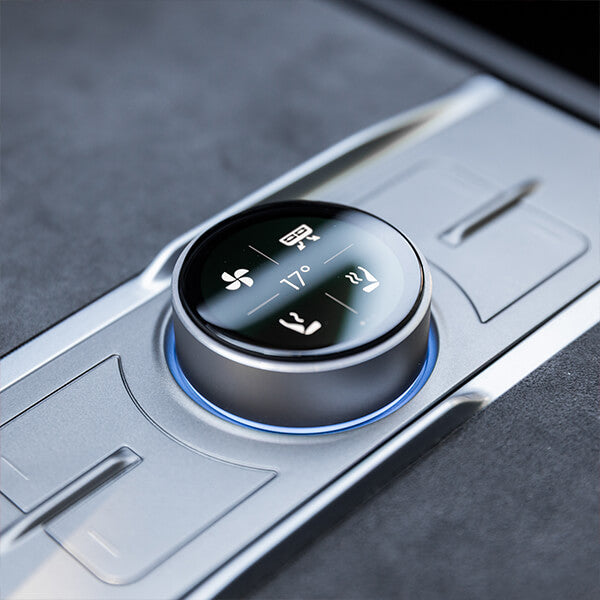
Set preferred climate settings, preferred speaker/phone shortcuts, and navigation settings (e.g., preferred map view) for each driver.
-
This saves every driver time when getting in.Some users also save preferred charging destinations or display settings in their profile. (Caution: Do not...) all Menu settings are saved to your profile — test the ones that are important to you.)
Practical tips
-
Link profile to keyLink your profile to your mobile phone key and any existing keycards. This ensures the most reliable automatic switching.
-
If it doesn't workCheck under Controls → Locks → Keys to ensure the correct device is linked to the correct profile. For Phone Key problems, check Bluetooth and app permissions.
-
Making good use of cloud profilesIf you regularly switch between vehicles, activate cloud profiles—this way you don't have to reconfigure settings in each car. For shared accounts, ensure proper account organization.
-
SecurityActivate PIN-to-Drive or Valet mode if necessary; Valet is a special profile that limits access and driving performance.
Driver profiles are a small but effective investment in convenience: they save time, reduce errors when switching drivers, and make your Tesla Model S/3/X/Y significantly more personal.
By the way: If you want to make your Tesla even more comfortable, then discover the large Teslabs accessory range.
Are you already using driver profiles in your Tesla? Share your experience in the comments below!