
You've bought a Tesla, just picked it up, and can't wait to finally get started with electric mobility? Congratulations!
But before you get started, it's a good idea to adjust and configure a few things in your Tesla. This article will explain what options are available and what possibilities you have.
The optimal Tesla configuration
Driver profiles
Each Tesla allows you to create different driver profiles that save and automatically adjust settings such as seat position, mirrors, lighting, and temperature preferences for different drivers. Upon initial setup or customization of the vehicle, the Tesla will prompt you to create an initial driver profile.
However, you can access driver profile settings —> Drivers can also create additional profiles, which is especially helpful if different drivers regularly use your Tesla. Tip: If you activate the "Use Easy Entry" checkbox, the vehicle will move the steering wheel and seat into a position that makes getting in and out easier as soon as you park or open the door.
Connect phone keys
In addition to "normal" keys and key cards, you can also use your smartphone as a car key with Tesla. To do this, activate Bluetooth, navigate to Phone Key in the Tesla smartphone app —> Start and scan an already valid key on the card reader in the center console – if successful, the app will send a message.
By the way: In the driver profile settings, you can link any type of key to a driver profile. When you get in the car, the profile matching the key will then be activated automatically.
Connect mobile phone via Bluetooth
If you use your smartphone as a key, Bluetooth must be constantly activated – so it makes sense to also establish a media connection with the vehicle. You do this via the Bluetooth icon —> Add device —> Start search. Once connected, you can forward your calls to the hands-free system, access your calendar, or play media files from your phone.
Setting up Wi-Fi
To reliably receive software updates, it can be useful to connect the Tesla to a Wi-Fi network (e.g., a mobile data network). to connect to a network (e.g., your home network) so that you have internet access while parked at night – especially if you live in an area with weak mobile network coverage.
To add Wi-Fi, tap the Wi-Fi icon in the top right corner of the vehicle screen and select the desired network. This only works, of course, if you are within range of the Wi-Fi network.
Seat, steering wheel, side mirrors and rearview mirror
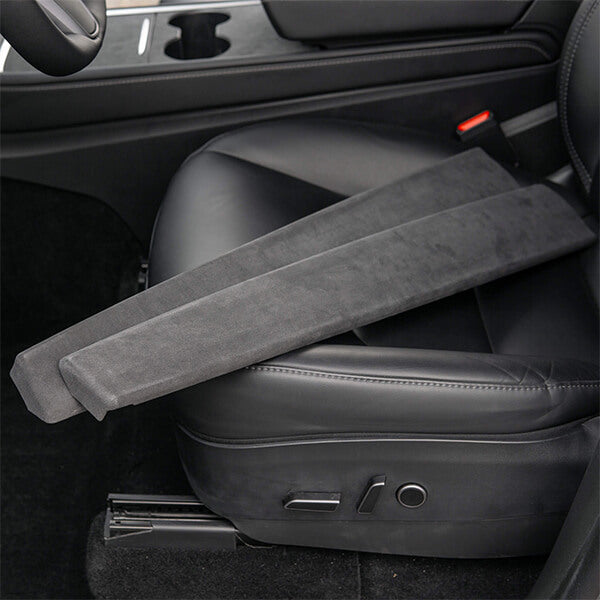
As with many manufacturers, you adjust the driver's seat electrically using buttons located on the left side of the seat, between the door and the seat itself. You can adjust the seat position and the backrest angle separately. Your vehicle may also have lumbar support, which you can adjust as well.
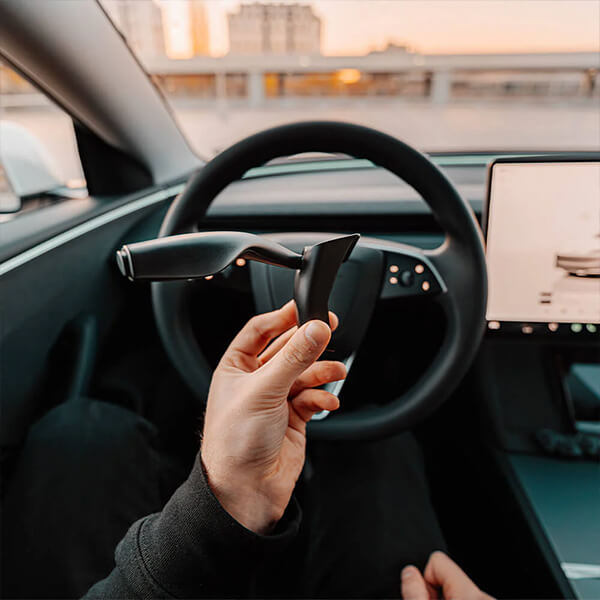
Adjusting the steering wheel position works slightly differently in Teslas compared to other manufacturers. First, navigate to Vehicle —> Steering wheel symbol. Now you can use the left scroll wheel on the steering wheel to adjust the desired position by pushing it up, down, left, or right.
The same procedure applies to the side mirrors: Via vehicle —> You can select the ideal position using the mirror and, again, the left scroll wheel. However, you still have to adjust the rearview mirror manually.Tip: Every time you adjust the steering wheel, mirrors, or seats, your Tesla will ask if you want to apply the new settings to the currently active driver profile. You can confirm or ignore this.
Display settings
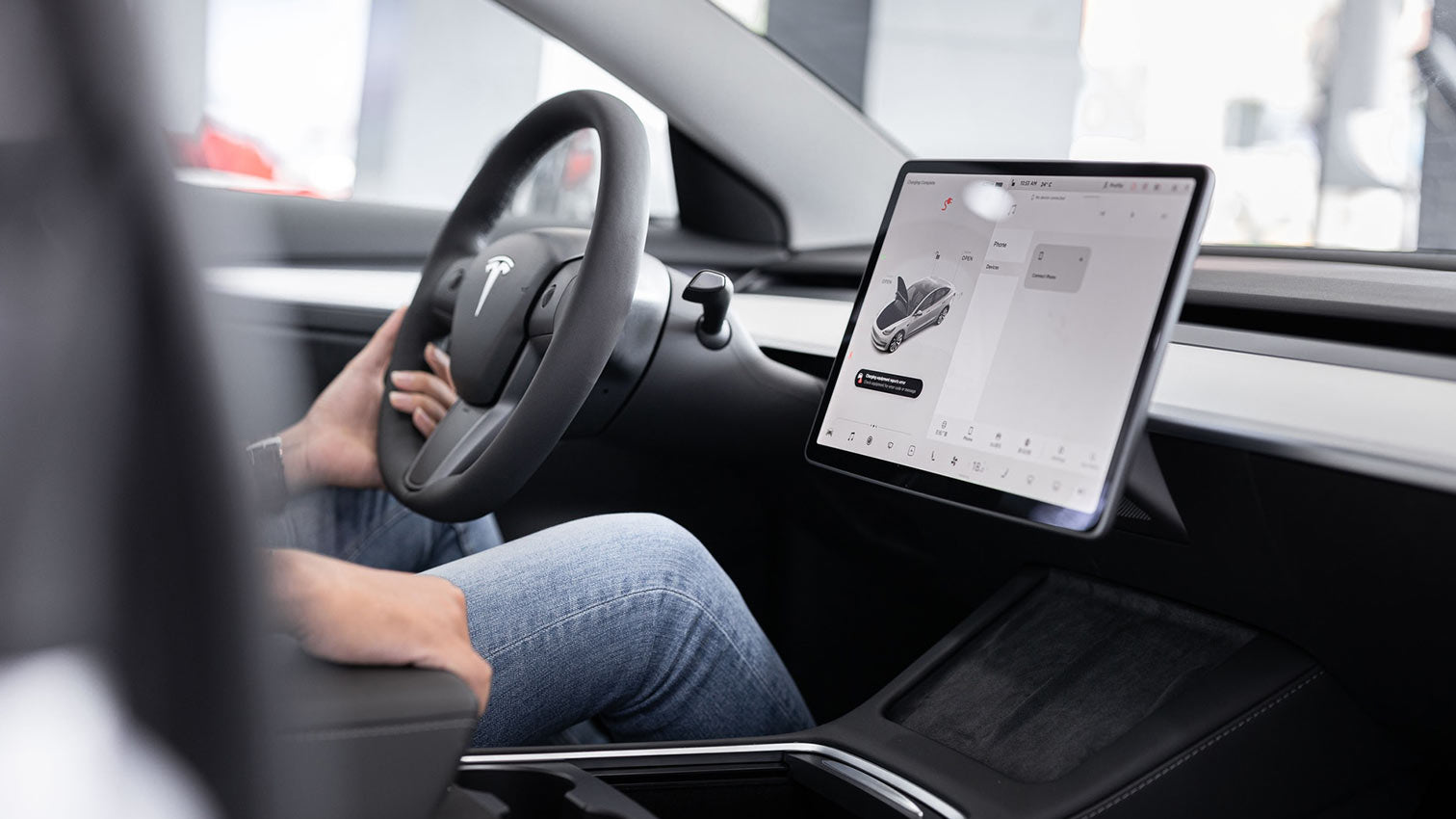
The next important point is the touchscreen settings. Here you can adjust the desired brightness (or let the Tesla decide by selecting "Auto"), choose whether the battery level should be displayed as a percentage or remaining range, select your preferred time format, and much more.
Steering mode
You can choose between three steering modes – Comfort, Standard or Sport. – Select settings that essentially affect how difficult or easy it is to turn the steering wheel. To do this, navigate to Vehicle —> pedals & Steering —> Select the steering mode and make your decision. If you mostly drive in the city, the Comfort setting is the best choice. However, if you enjoy driving briskly on winding country roads, you'll be happier with the Sport mode.
Give your Tesla a name
For everyone who considers a car a personal matter: Under Vehicle —> You can give your Tesla a name via the software. This name will then appear in the Tesla app, among other places.
Save home and work addresses
To avoid having to enter frequently visited locations like your home or workplace into the navigation every day, you can save them as shortcuts. To do this, tap the search bar in the navigation, then tap "Home Address" and enter your address. Repeat this process for your work address.
If you now press and hold the search bar and drag it to the right or down, the Tesla will automatically calculate the route to your home address. Tip: In addition to your home and work addresses, you can also save other frequently visited locations as favorites. To do this, touch the location on the map, then the star icon, and then "Add to Favorites".
Equipping a Tesla with basic accessories
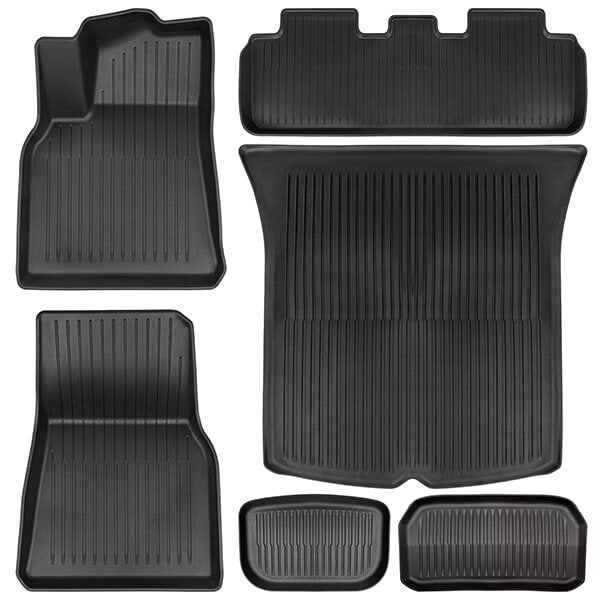
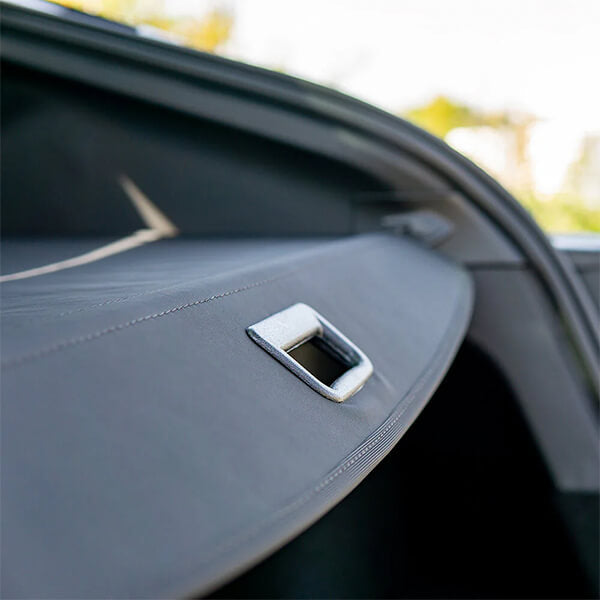
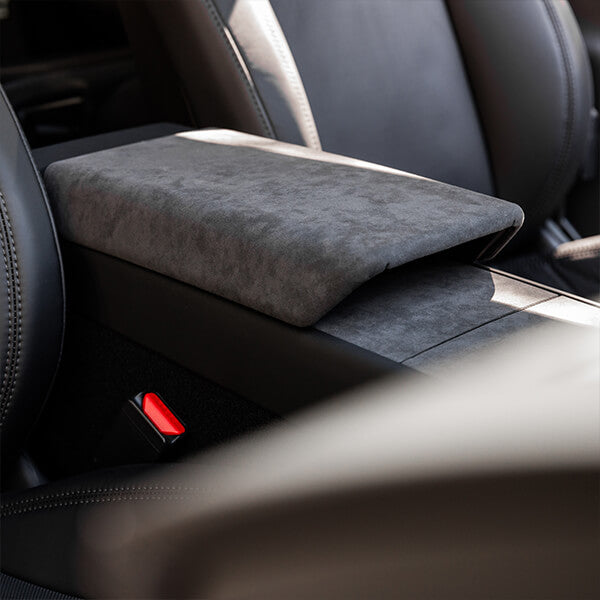
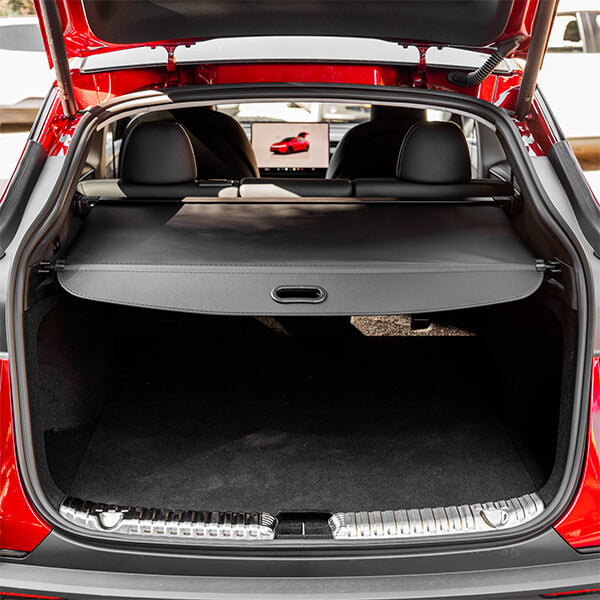
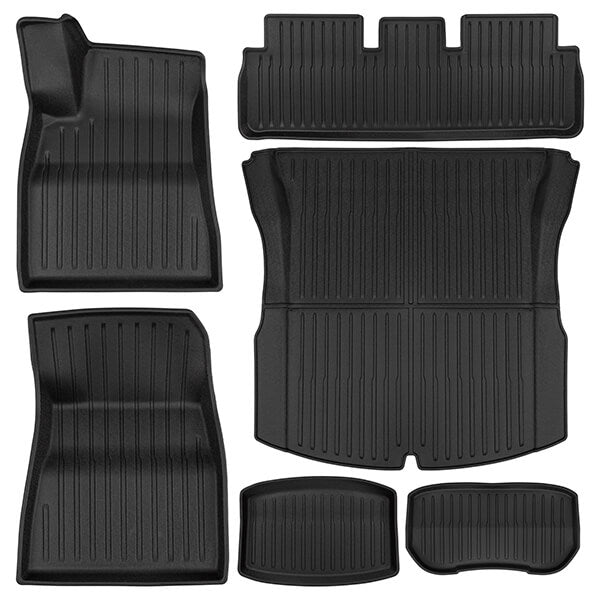
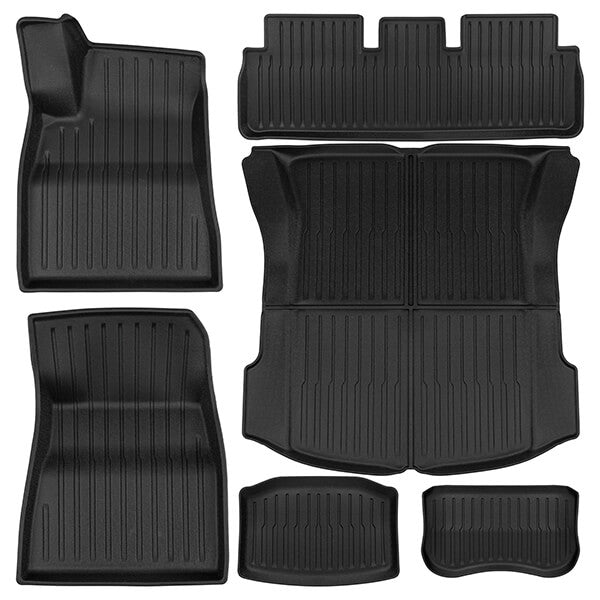
Finally, it makes sense to equip your Tesla with some products that make it more practical and robust. For example, this could include a... Center console organizer, one screen protector or a Mat for the frunk or trunk include those that preserve the new car feeling of your Tesla for as long as possible.
All this and more can be found here at Teslabs – feel free to take a look around!